


TV Remote For Fire & TV Stick
4.6103.00 Reviews
App Specs
- Version
- 1.4.2
- Updated On
- License
- Free
- Downloads
- 100,000+
- Developer
- AxenGrid Labs
- Categories
- House & Home
- Platform
- Android
Screenshots
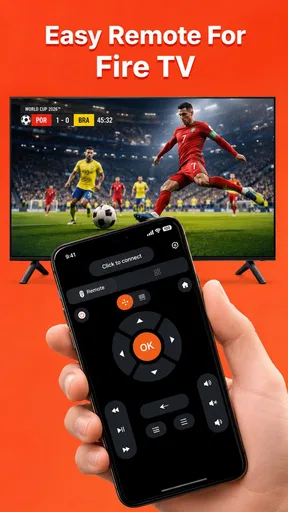
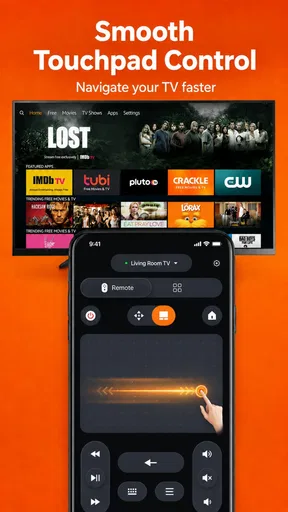
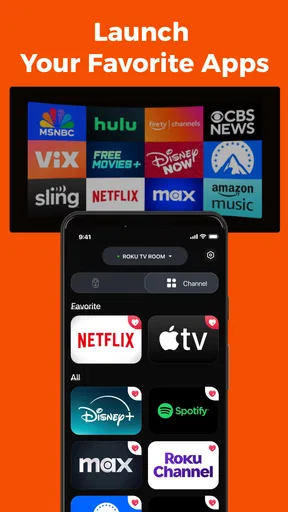
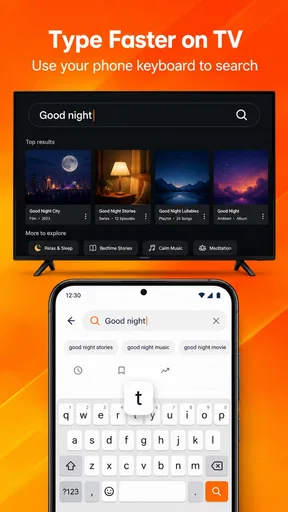
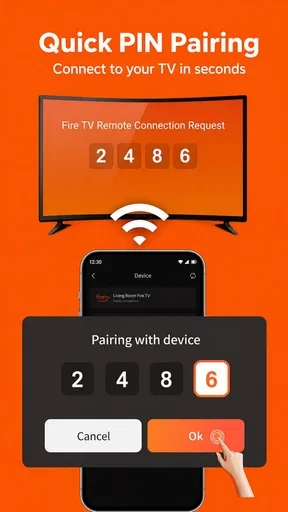
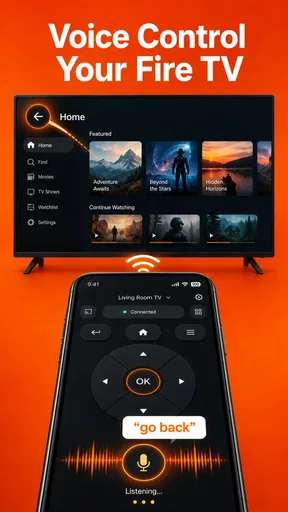
 Analysis by AppCompare
I reach for a phone-based TV remote when the physical one has slipped between sofa cushions or someone else is using it, and TV Remote For Fire & TV Stick is aimed squarely at that sort of moment. It is a House & Home app from AxenGrid Labs, built to help control a FireStick or TV from a phone. My view is that its appeal is practical rather than flashy: it can make a familiar living-room task easier, provided your devices connect and the on-screen controls suit the way you watch.
Who is likely to get the most from it?
I’d consider it most useful in a home where the remote regularly wanders, where someone is already holding a phone while watching, or where a second person sometimes needs to navigate without taking the main controller. It can also be a handy backup in a guest room or shared space, as long as you test the connection before treating it as a reliable part of the setup.
It is less compelling if your physical remote is always close by, you prefer tactile buttons, or you need one controller for several kinds of household equipment. I would also think twice before making it the only way to operate the TV: a phone can be misplaced, run low on charge, or become busy with something else. Keeping the original remote nearby avoids turning a small convenience into a point of failure.
What it offers in everyday use
I find this section most useful when thinking beyond the obvious “remote on a phone” pitch: the real test is whether the app can become a dependable backup in the middle of an ordinary evening. I’d judge it by how naturally it fits small routines, like navigating while holding the phone or sharing control without passing the physical remote around. That practical lens leads into how it compares with the options many households already use.
A phone as a backup remote
The most useful way to think about this app is as a backup control surface, not a guaranteed replacement for every remote in the house. A phone is usually nearby, and a touchpad can be more convenient than tapping directional buttons when you need to move around a TV interface. That convenience matters when you want to browse without searching for the remote or when the original is temporarily out of reach.
The app’s focus is deliberately narrow: connecting with a FireStick and controlling a TV. That is helpful if those are the devices you want to manage, but it also means I would not install it expecting a universal controller for unrelated home electronics. Before relying on it, I’d check that the television and streaming setup match its intended use and that the phone can establish a connection in your home.
Where the touchpad makes a difference
A touchpad can make navigation feel more direct than repeatedly pressing arrows, especially when moving through rows of shows or scrolling across menus. It may also be handy when you’re holding the phone already to look up a title or message someone. The trade-off is that touch gestures can take a little adjustment: a swipe that feels natural on a phone may move farther or less predictably than a single button press.
Worth Reading Before You Choose

Switching to Android Auto Means Rethinking Your Driving Routine

Google Calendar Makes a Crowded Week Easier to Manage

Baby Panda World Brings Quick Play to Modern Phones, but Its Game Library Feels Busy

ESPN’s Live Game View Makes Following Close Games Easier

QuizzLand Review: A Good Fit for Short Trivia Breaks, Not Every Player

Basketball Stars: Multiplayer Is Fast, but Can It Recover When Matches Go Wrong?
For precise tasks, such as stepping through a menu one item at a time, physical directional controls can still feel more dependable. I’d treat the touchpad as an alternative interaction style rather than assuming it is better in every situation. If the app’s controls offer both gesture and button-based navigation, switching between them for browsing and fine adjustments is a sensible way to find what feels comfortable.
One practical habit is to use broad gestures only when the screen layout makes the destination obvious, then slow down for confirmation screens or tightly packed rows. That reduces the chance of overshooting and having to retrace your steps. If you are navigating while someone else is watching, a deliberate tap-by-tap approach is usually less disruptive than a quick swipe that lands on the wrong item.
A realistic living-room scenario
Imagine starting a film after dinner and discovering the remote is in another room. With the phone already in hand, a remote app can save a small but irritating interruption: connect, navigate to the streaming device’s controls, and continue from the sofa. It is also useful when a family member has the physical remote and you want to help move through a screen without taking it away.
That scenario depends on connection working when you need it. I would not wait until guests are gathered around the TV to try the app for the first time. Set it up and test navigation beforehand, then keep the physical remote somewhere accessible. That simple bit of preparation turns a phone remote from an uncertain emergency fix into a more useful backup.
A small routine that avoids awkward moments
When setting it up, I’d test more than whether the TV responds once. Try moving through a few screens, pausing and resuming, and returning to the main control view after using another phone app. These ordinary actions reveal whether the phone remote fits your actual routine better than a quick pairing check does. If you use the TV with other people, let them try the controls too; what feels obvious to one person may not be obvious to everyone.
It also helps to decide in advance where the physical remote will stay. If the phone app is being used as a backup, a consistent spot for the original means nobody has to search for either option. That may sound mundane, but the value of a remote app is greatest when it removes friction rather than adding a new question about which device is currently in control.
How it fits among remote-control options
I’d compare this app with the remote already on the coffee table and any official phone-control app you may already have, rather than treating downloads as a contest. Each option solves a slightly different problem: tactile certainty, a phone that is already at hand, or controls tied to a device maker’s ecosystem. The best fit depends on which trade-off matters most in your living room.
Compared with the physical remote
A dedicated remote has one advantage that a phone cannot fully copy: it is ready for the job and does not compete with calls, notifications, or a low battery. Its buttons can also be easier to use without looking. A phone app wins on availability when the phone is already with you, and a touchpad may suit broad navigation better than a small cluster of buttons.
I would keep both options if possible. The app is most compelling as a second route into the TV, not as proof that the original remote is unnecessary. If several people share the television, having a physical controller on hand also avoids making the person with the phone responsible for every pause, volume adjustment, and menu choice.
Compared with built-in phone controls
Some TV and streaming-device setups have their own official phone-control tools. Those can be the better first choice when you want manufacturer-specific support or already use that brand’s app for other tasks. A separate remote app is worth considering when you want a focused control option, but I would compare the connection process and day-to-day reliability rather than assume that one approach is automatically superior.
There is a practical difference between a feature-rich companion app and a simple remote. If you only need basic navigation, an interface centered on remote controls may be easier to reach than a larger app with many menus. If you also want device management or other ecosystem features, the official companion may be more useful. Your choice should follow the task you repeat most, not just the number of features on an app page.
For a household already using an official control app, I would not replace it just to try another option. Instead, compare them during the same kind of session: connect from the usual place on the sofa, navigate a few menus, and see which interface is easier to reach without interrupting what you are doing. A focused alternative is most persuasive when it removes a real annoyance, not simply because it offers another way to tap a screen.
Checking fit before depending on it
The app is free to download, and its age rating is Everyone. It includes optional in-app purchases priced from $4.99 to $17.99 per item, so I’d look carefully at what is offered before buying anything and decide whether the free experience already covers your needs. A paid option only makes sense if it adds something you will actually use; the basic idea of controlling a television should be tested first.
Compatibility and connection are the first questions I’d settle. The minimum operating-system requirement is version 7.0, while the important practical check is whether the phone and TV setup can see one another and maintain control. If pairing is unreliable in your home, a traditional remote or the television maker’s own control option is a safer choice than counting on this app during a show.
When deciding whether a purchase is worthwhile, I’d first use the app for the exact actions I repeat most often rather than paying based on a general promise of convenience. If the unpaid experience already handles those actions, there may be no reason to spend. If you are considering an optional purchase, check its description in the app and make sure it addresses a need you actually have; the price alone does not tell you whether it will improve your setup.
How mature the app feels, and what may change
A version number and a positive overall rating can offer useful context, but neither tells me how reliably the app will work with a particular home setup. I’d focus on what an existing user can verify directly—whether connection and navigation remain comfortable in regular use—and treat any future changes as something to assess once they arrive. That distinction helps keep expectations grounded.
Its current place in the category
The current version is 1.4.2, and the app has an average rating of 4.6 from around 3.3 thousand ratings, with over 100 thousand installs. Those figures suggest that many people have tried it and that its overall reception is positive, but they do not tell me whether it will connect smoothly to your particular combination of phone, television, and streaming device. I’d use them as useful context, not as a substitute for testing it at home.
TV Remote For Fire & TV Stick was released on January 28, 2026. That release date and current version provide a point of reference for where the product stands, but they do not establish a detailed history of what changed between versions. I wouldn’t infer specific upgrades or assume that a particular control feature was recently added without a clear update note.
What the version tells existing users
If you already use the app, version 1.4.2 is the version to compare against what is installed on your phone. Keeping an app current can matter for compatibility and general maintenance, but I would avoid expecting a particular improvement just from the version number. When an update is available, checking its notes and then testing the controls you depend on is more reliable than assuming the update changes the way navigation works.
For someone considering a switch from another remote app, the version gives a concrete starting point, not a promise of a different experience. I would test the actions that matter in real use: opening the control screen, moving through menus, and recovering after a connection interruption. If those basics work consistently, the app may fit neatly into your routine; if they do not, a newer-looking version number will not make it the right tool.
Limitations worth weighing
The biggest trade-off is reliance on a phone. You need it nearby, charged, and available, and its screen may lock or be interrupted at an inconvenient moment. A touchpad also requires a little more care than tactile buttons when you want exact, repeatable movement. If you often hand the remote to children or guests, a familiar physical controller may be less confusing.
There is also a setup cost, even when the app itself is free: you have to install it, connect it to the right equipment, and learn where the controls are. That effort is worthwhile if you regularly misplace the remote or prefer touch navigation. It is less persuasive if your existing remote is always within reach and already does everything you need.
People who expect a single app to control a broad collection of household devices should look elsewhere or verify the scope before installing. This is specifically positioned around FireStick and TV control. Likewise, if your priority is a device maker’s official support path, its own app may be the more reassuring option. The best choice depends on whether convenience, familiar buttons, or manufacturer-specific features matter most to you.
What I would watch next
For a remote-control app, the meaningful signs of progress are not abstract feature counts but improvements to connection reliability, clearer setup, and controls that remain easy to use across ordinary TV sessions. I would watch for those kinds of changes in future updates, while treating them as possibilities rather than promises. The current version gives a snapshot of the app today; it cannot tell us what the developer will add later.
My recommendation is straightforward: try it if a phone-based backup for your FireStick or TV would solve a recurring annoyance, and test it before you depend on it. AxenGrid Labs has made a focused tool with a useful touchpad angle, but it still has to fit your hardware and habits. For me, it makes the most sense as a convenient spare—not a reason to discard a physical remote that already works well.
Pros
- Convenient alternative when the physical remote is misplaced.
- Simple controls make basic navigation easy to understand.
- Useful for entering text without using the on-screen keyboard.
- Can help control a compatible TV or streaming device from one phone.
- No need to keep spare remote batteries on hand.
Cons
- Requires a compatible device and network setup to work properly.
- Phone must stay available while you use it as a remote.
- Touch controls may feel less precise than physical buttons.
- Some features may require in-app purchases or a subscription.
- Compatibility and available controls can vary by TV or Fire TV model.
FAQs for TV Remote For Fire & TV Stick
What is TV Remote For Fire & TV Stick, and what can it do?
TV Remote For Fire & TV Stick is a mobile app designed to control compatible Fire TV devices from a phone or tablet. Depending on the features supported by the particular version, it may provide on-screen navigation, playback buttons, text entry, or other remote-style controls. It is intended as a companion to a physical remote, not as a streaming service or a way to watch TV channels on your phone.
How do I connect the app to my Fire TV or TV Stick?
In most cases, your phone and Fire TV need to be connected to the same Wi-Fi network before the app can discover the device. Open the app, select the Fire TV shown in its device list, and follow any prompts displayed on the television; some setups may require entering a pairing code. Menu names and connection steps can vary by app version, device model, and network configuration.
Will it work with every Fire TV, Fire TV Stick, and television?
Compatibility depends on the app’s current requirements and the Fire TV model, operating system, and network setup. The app controls a compatible Fire TV device; it does not necessarily replace every function of a television’s original remote or support every smart-TV platform. Before downloading, check the app-store listing for supported devices and minimum OS versions, and confirm that your Fire TV is connected and available on your network.
Is TV Remote For Fire & TV Stick free, and does it include ads or in-app purchases?
Pricing and included features can differ between app versions, regions, and the Android and iOS stores. Some remote apps are free to install but display advertising, limit selected controls, or offer optional purchases or subscriptions. Check the current store listing and its in-app purchase details before installing, and review the app’s permissions and privacy information so you know what to expect.
What should I try if the app cannot find or control my Fire TV?
First, check that both devices are on the same Wi-Fi network and that the Fire TV is awake and connected. Close and reopen the app, restart the phone and Fire TV, and check for app or system updates. Guest networks, VPNs, router settings, or network isolation can prevent device discovery. If pairing still fails, follow the app’s help guidance and confirm that the Fire TV model is supported.


